Mobile App
Installation
You can download HUUM mobile application from Google Play store or Apple store.
You will find your Sauna ID and code from the front cover of the UKU main module.

Home
For sauna owners or household members
- Heating times: 1, 3 and 6 h
- Any user with access can turn the sauna on or off
Commercial
For commercial spa and wellness facilities
- Heating times: 1, 3, 6, 12 and 18 h
- When one user is actively using the sauna, others cannot control it through the app until the session ends.
Select the option “Forgot password” from the main login screen. You are redirected to a password recovery screen where you can enter your registered email address.
If successful, a verification email will be sent to your inbox. Make sure to check your email (including spam folder) and verify your account before logging in. The reset password link is active for 30 minutes. If the link is expired or already used, register again or request a new link.

Connecting to Wi-Fi
A Wi-Fi connection is required to use the mobile app (available with the UKU Wi-Fi controller).
Your sauna usage data is automatically saved, giving you valuable insights while also enabling the HUUM support team to quickly and accurately diagnose and resolve any issues—so you can relax with complete peace of mind.
- Press and hold the UKU control panel’s button for 9 seconds while the heater is not heating to access the settings menu (you’ll first see the timer menu, but keep holding until you reach the settings menu).
- Select “Wi-Fi settings” and then go to “SSID.”
- Choose the correct Wi-Fi network from the list.
- Enter the network password (ensure the name and password are each no longer than 20 characters, and password contains no spaces).
- Click “Connect” and follow the on-screen instructions to complete the setup.

If you have an UKU Local control system but wish to upgrade to Wi-Fi connectivity, this can be done through the HUUM mobile app.
Follow these steps:
- Dowload the HUUM mobile app
- Create an account
- Locate the Sauna ID on the cover of the UKU main module.
- Enter the Sauna ID in the mobile app to connect your device.
- Once connected, you can unlock Remote Control to manage your sauna anytime from anywhere.
- After the payment is completed, you will be able to control your sauna through the mobile application.
- If the message “No WiFi connection” appears, activate the WiFi connection through the control panel settings.
NB! Make sure to keep the Sauna CODE shown in the mobile application in a safe place for future purposes, for example to connect another account to this sauna.
Controlling your sauna
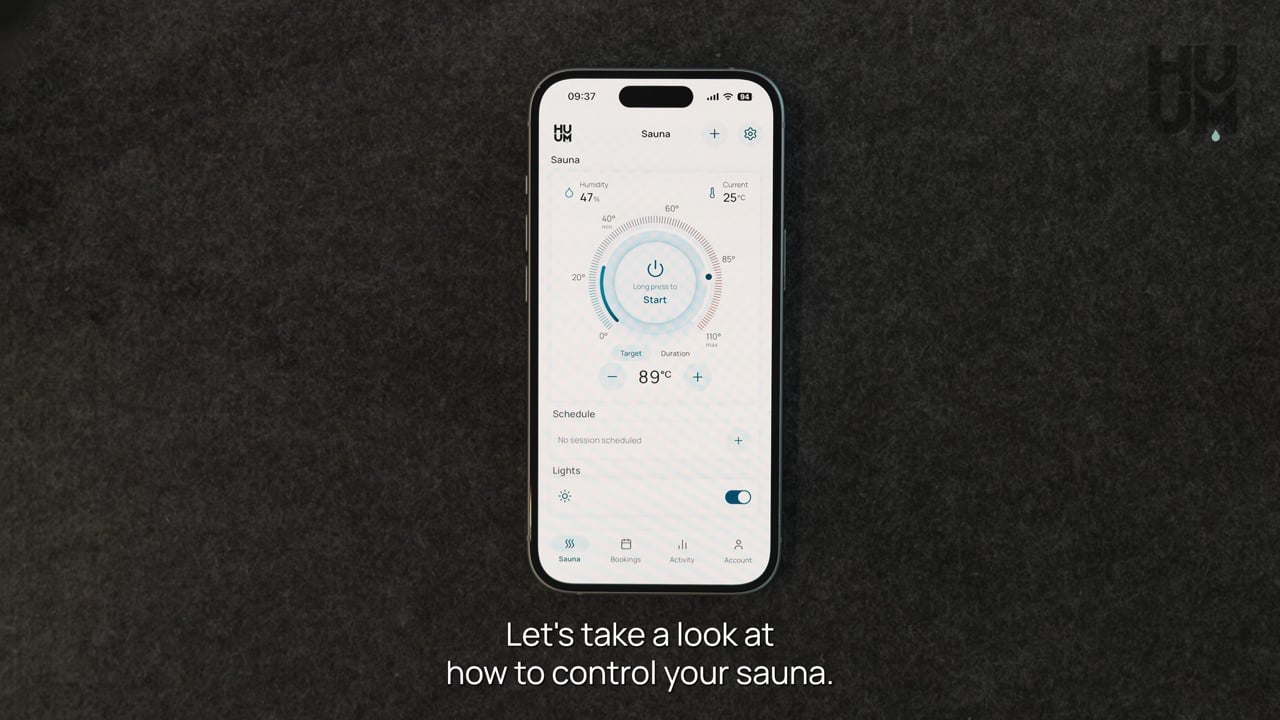
Sauna controls in the new HUUM mobile app provide a significantly faster and more responsive user experience. Communication between the app and the controller is up to three times quicker, ensuring smooth and delay-free operation. This allows every command—whether adjusting temperature or starting the heating—to be executed with immediate and reliable feedback.
To start heating, press and hold the button.
The current temperature visually changes based on the system status. Colours help you quickly understand the state:

You can adjust the temperature quickly using the slider or fine-tune it with precise step controls.
- Heating Progress Indicator
Once the heating is activated, the slider transitions into a progress indicator, displaying real-time progress toward the target temperature.
In addition, the session duration can be set directly from the main view, giving you faster and more convenient control over your sauna experience.
- Duration
The duration selector allows heating time to be adjusted in 15-minute increments, up to the maximum duration configured on the control panel.
To adjust the maximum duration session time, go to “Settings” –> “Heating time” in the UKU control panel.
The MultiView feature provides a centralized overview of all saunas connected to your account. It allows you to quickly monitor their status and key information at a glance.
When more than one sauna is added, the system automatically displays a multi-sauna overview, showing all available units in a clear, easy-to-read format.
 |
Sauna overview
Each sauna is presented as an individual card, offering a quick overview of its current state. For every sauna, the following information is displayed:
This layout allows users to quickly understand the condition of all saunas without needing to open each one individually. Accessing Detailed Controls To manage a specific sauna:
From there, you can adjust settings and monitor performance in more detail. |
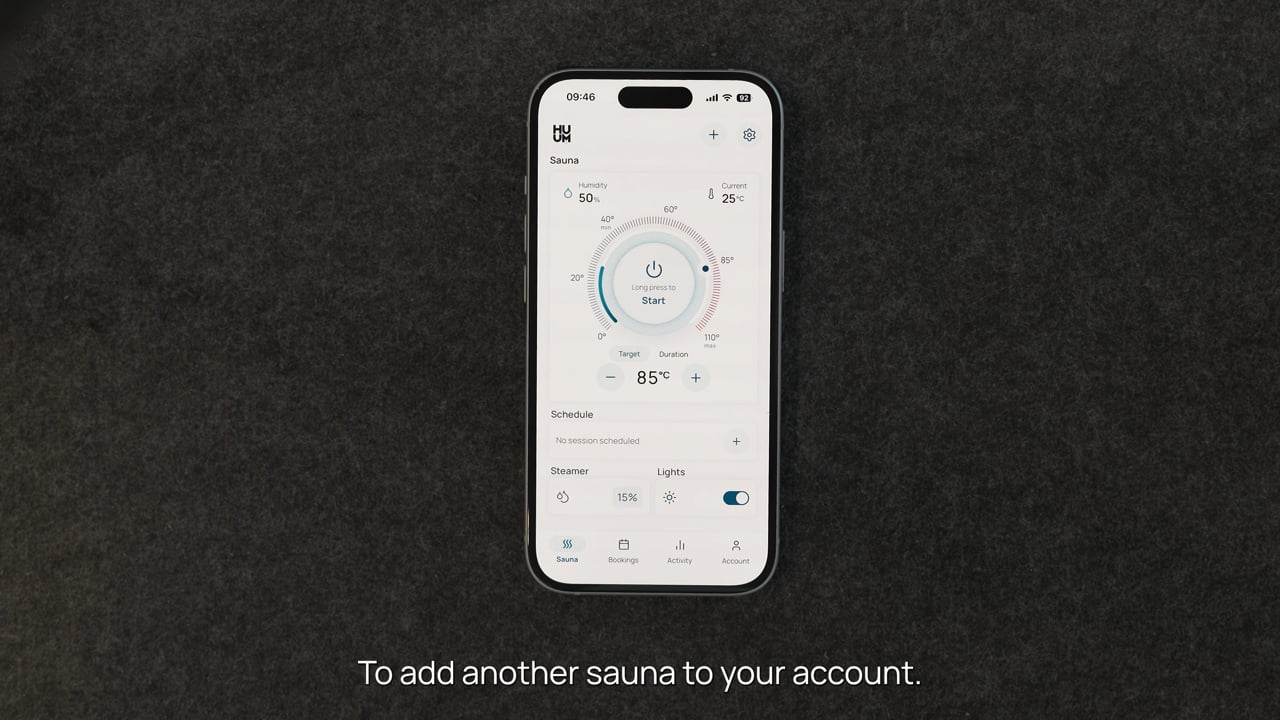
How to add another sauna?
Booking allows you to plan your sauna sessions in advance – offering a seamless, flexible, and fully automated experience.
The feature supports both:
- One-time bookings
- Recurring schedules, ideal for regular use
With Booking, you can:
- Define heating behaviour based on your preferences
- Automate sauna operation so it is always ready at the right time
You can create a new booking from selecting Add booking (+) from the Bookings view.
- Select the desired sauna from a dropdown selector and enter an event name
- Select the date and time
- Select a heating duration
NB! Available options are based on the sauna usage type defined in settings (Home or Commercial)
- Set the target temperature using adjustment controls
- Recurring Booking – you can enable recurring bookings for regular sessions
- Heating Preset – enables automatic heating start
- When activated, the sauna will begin heating according to the scheduled booking
Note:
It “Remote start safety” is enabled in the controller settings, a warning message is displayed to ensure safe operation.
The system sends a notification when a scheduled session begins.
However, if required conditions—such as confirmation of remote safety—are not met, the notification will not be sent and the scheduled session will not start.
Sauna Activity transforms your usage data into actionable insights – combining statistics, visual graphs and session history to help you track, plan and get the most out of every session.
Activity view supports multiple saunas:
 |
If multiple saunas are available:
– You can choose which sauna’s activity to view. – If only one sauna is available: The sauna name is displayed No selection is required Overview includes: – Total sauna hours (current month) – Days since the last sauna session – Number of sessions (displayed per selected time range) |
| Sauna session graph
|
You can access a complete list of past sauna sessions. Each session is displayed as a card, including the following details: – Date – Time – Duration – Temperature
Each session also indicates the start type:
|

Remote start safety is a safety check that confirms your sauna is clear before the heater can be started remotely from the mobile app (including bookings). It is enabled by default in the UKU control system.
When it is enabled, the heater cannot be started from the app after the sauna door has been opened, until you have checked the sauna room and confirmed on the control panel that the sauna is safe. This makes sure that nothing has been left near or on the heater before it starts heating remotely.
How to change the Remote start safety setting
You can enable or disable Remote start safety in the UKU control panel settings. With it turned off, you can remote start your sauna from the app without confirming safety on the panel each time.
To reach the setting:
- Make sure the heater is not heating. The settings menu is only accessible when the heater is off.
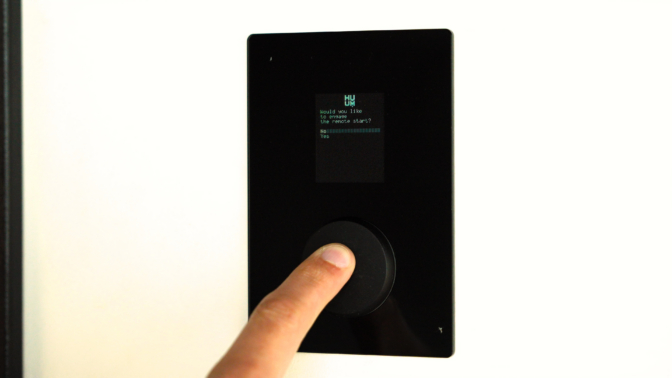
- Press and hold the control panel button. The prompt “Would you like to engage the remote start?” appears first. Keep holding.
- Keep holding as a timer appears, and continue until the settings menu opens (about 10 seconds in total).
- Go to “Safety settings.”
- Open “Remote start safety” and set your preference.
Confirming safety for remote start
When Remote start safety is enabled, the system asks for a new safety confirmation whenever:
- the sauna door has been opened, or
- the UKU main module has lost power.
If the door was opened during a heating session, the confirmation is required again once that session ends.
To confirm that your sauna is safe for remote start:
- Close the sauna door. If the control panel is installed inside the sauna, you have 15 seconds after confirming to leave the sauna and close the door.
- Press and hold the control panel button down for 3 seconds, until the safety confirmation prompt appears.
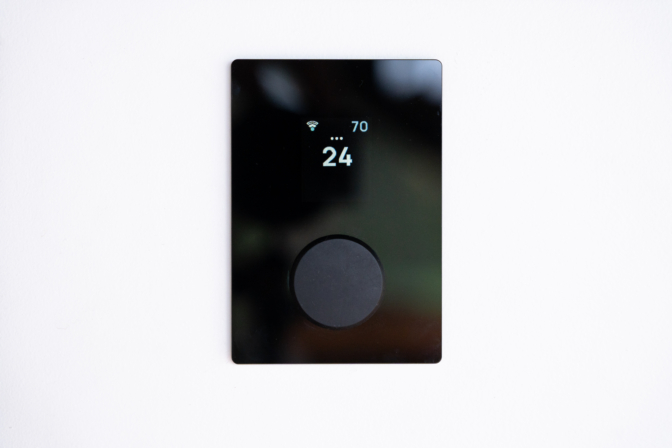
- Answer yes. Remote start is now enabled, shown by three gray dots on the control panel screen.
If you answer no, or do not answer, the system will not allow you to start heating from the app.
Once the sauna is confirmed as “SAFE”, the confirmation stays valid until the sauna door is opened, or until the UKU main module loses power. If you start a session and then change your mind, the sauna stays “SAFE” as long as the door was not opened, so you can still start it remotely later.
This makes sure no one has entered the sauna and nothing has been left on the heater, so remote start stays safe at any time.
Troubleshooting
Make sure that notifications are enabled for the HUUM app in your phone’s settings and that the app is connected to Wi-Fi. Also, check that your mobile device has internet access and the latest version of the app is installed.
Try the following steps:
- Restart your Wi-Fi router and the UKU control system (switch off the power for a couple of minutes and turn it back on).
- Reset the UKU to default settings via the control panel’s settings menu.
- Try reconnecting the control system to your home Wi-Fi network.
- Log out and in again from the app.
- Uninstall and reinstall the app.
A slight difference between the measured temperatures is completely normal. It derives from the intrinsic error of measurement that applies to the devices. However, if the difference exceeds 10–15 degrees, you should check the following:
- Are the temperature sensor and sauna thermometer placed in different locations in the steam room where the temperatures actually differ?
- Is the temperature sensor too close to the sauna heater? Or is it too close to the door?
The best location for the temperature sensor is 50 cm from the heater and approximately 15 cm from the ceiling. It should not be placed close to vents and should be min. 50 cm from the windows and door.
If none of the causes described above apply, and the problem persist, the fault likely resides in the temperature sensor or its wiring and it requires replacing. Please contact us at support@huum.eu with a description of the problem and add a picture of your sauna room.
If the error message “No Wifi connection” is displayed, it means that your UKU control system is not connected to the internet.
Restart your Wi-Fi router and the UKU Control system.
If the Control system is connected to Wi-Fi but still not working, make sure:
- you are using the latest version of the mobile app
- your phone’s operating system is up to date